Modifying the Battle.net client: China, Americas, Europe, and Asia regions all in one
Many players who use the Chinese servers also want to try the overseas servers. Here's a simple modification to the Battle.net client that lets you sign in to the Americas, Europe, Asia, or China servers as you choose.
Modify the file to log in to different servers
- Open Battle.net.config. WIN7 path: C:\Users\your_username\AppData\Roaming\Battle.net. MAC path: ~/Library/Application Support/Battle.net. XP path: C:\Documents and Settings\Administrator\Application Data\Battle.net. Note: AppData is hidden by default. In Folder Options, open the View tab and enable showing hidden files and folders to see it! 2. Edit Battle.net.config. Under Client, modify AllowedRegions to include CN;US;EU;KR. Regions determines which regions you can select at login: CN is China, US is the Americas, EU is Europe, and KR is Korea/Taiwan. (Choose the regions you prefer.) Locales controls the launcher's language; add zhCN for a Simplified Chinese launcher.
"Client": {
"AllowedRegions": "CN;US;EU;KR",
"AllowedLocales": "zhCN;deDE;enGB;enUS;esMX;esES;frFR;itIT;plPL;ptBR;ruRU;koKR;zhTW"
}
},
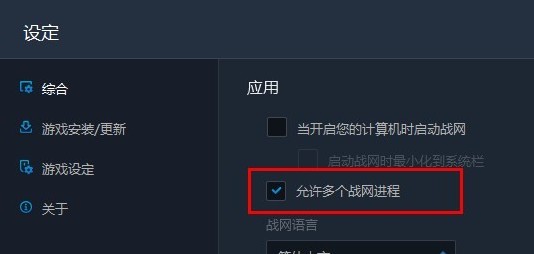
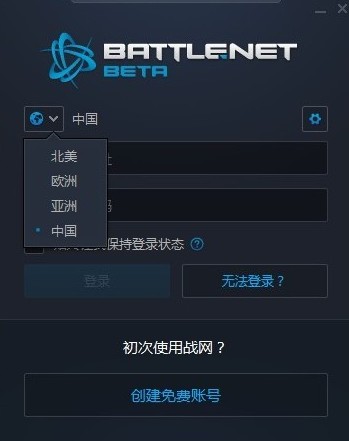 The modification is now complete. You can enable the option to allow multiple Battle.net processes, use one for the Chinese region and another for an overseas region, and access both regions from the same launcher!
Modify the file to try different voices and fonts
Step 1: Find the Hearthstone installation directory. ** Step 2:** Find client. ** Step 3:** Change [Localization] Locale = zhCN. zhCN means Simplified Chinese. For Taiwan-region voices and Traditional Chinese text, use zhTW; for English voices and text, use enUS.
Published 05/20/2018 · Krunk Zhou
Join the conversation